Managing battery products
Adding and editing battery products, and keeping them compatible with vehicle lookup.
Managing battery products
👤 Ops
Battery products are ordinary Shopify products - you add and edit them in the Shopify admin like any other. What's special about CBP is the link between a product and the vehicle fitment data.
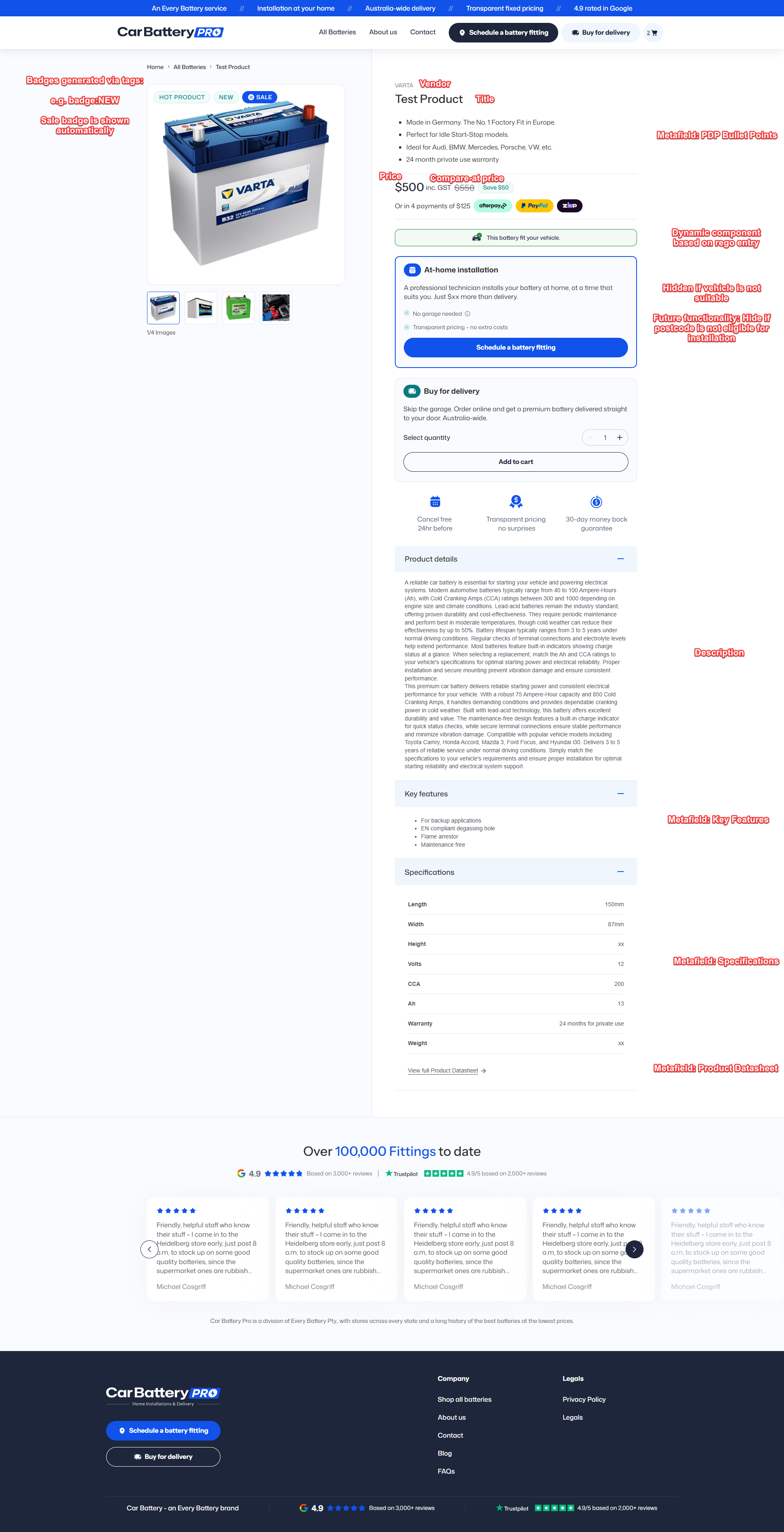
Adding a new battery
- Products → Add product in the Shopify admin.
- Fill the standard fields: Title, Description (a short overview only - detailed content goes in the metafields below), Media (hero image), Price, Inventory, and Variants if applicable.
- Set Vendor to the brand (Varta, Amaron, Panasonic, etc.).
- Set Product type (e.g. Car battery).
- Add it to the relevant Collections (e.g. All batteries, the brand collection, a vehicle-fitment collection).
- Scroll to the Metafields section at the bottom of the product page and fill in the four custom metafields described below.
- Save. The product appears on the storefront using the Product template.
Shopify references: adding products, variants, collections.
For best image results, upload square hero images at least 1200×1200 px.
Custom product metafields
These four metafields drive the bespoke parts of the product page (PDP) and the product quick-view.
They all live in the custom namespace and are edited at the bottom of the product page in the
admin. See Shopify's metafields guide.
| Metafield | Type | Where it shows | Notes |
|---|---|---|---|
key_features | Rich text | Key features accordion on the PDP, and the quick-view | Bullet-friendly. Keep concise - 4–8 points. |
specifications | Rich text | Specifications accordion on the PDP, and the quick-view | A definition list or short table works well. The datasheet button is appended automatically when product_datasheet is set. |
pdp_bullet_points | List of single-line text | Bullet strip near the top of the PDP, and the quick-view | Each entry is one bullet. Aim for 3–5 short bullets. |
product_datasheet | File (PDF) or URL | View full Product Datasheet button inside the Specifications accordion | If empty, the button is hidden. |
The PDP renders the rich-text metafields with body typography - avoid pasting heavy formatting from Word/Google Docs, as it can carry over unwanted styles.
Editing or removing a battery
- Editing: open Products → (battery), change the fields and metafields, and Save. Changes go live immediately.
- Removing: prefer Set as draft rather than delete, so existing orders and customer history stay intact. Drafts disappear from the storefront automatically.
The golden rule: SKUs must match
A battery only shows up as "fits this vehicle" when its SKU in Shopify matches the SKU in the fitment data that the CBP API returns. See Vehicle lookup & battery compatibility for how the matching works.
If you add a battery and it never appears in vehicle results, check the SKU first. A mistyped, missing, or changed SKU is the most common reason a battery is "invisible" to the lookup - even though the product page itself works fine.
Checklist when a battery should appear but doesn't
- Confirm the product is active and in the right sales channel/collection.
- Confirm the variant SKU exactly matches the fitment SKU (no extra spaces, correct case).
- Confirm the vehicle actually has that battery in its fitment list (the API, not Shopify, decides this).
- If the SKU is correct and it still doesn't show, the fitment data itself may be missing the mapping - this is an API/data matter; see Escalation & contacts.
Vehicle fitment badges
The "fits your vehicle" badges on collection pages come from the lookup API (see Vehicle lookup), not from a metafield. There's nothing to set on the product for this beyond the SKU rule above.
Developer reference
- Metafield reads:
templates/product.json(key_features,specificationsvia themetafield_tagfilter);sections/product.liquid(pdp_bullet_pointsloop ~line 94,product_datasheetbutton ~line 207);sections/product-quick-view.liquidsurfaces the same metafields in the quick-view. - Vehicle suitability callouts:
assets/vehicle-suitability.jsreads the selected vehicle fromwindow.theme.vehicleDetails(localStorage) and updates collection-page badges. - Product card badge logic:
snippets/component.product-card-badge.liquid.